TallyPrime WhatsApp Integration: Complete 2026 Guide
TallyPrime users can share invoices through Tally's built-in WhatsApp service or through a separate TDL and desktop connector. The built-in route uses a registered business account and approved templates; TallyWhatsApp pairs an existing WhatsApp account by QR code. This guide shows the setup and operational differences so you can test the route that fits your office.

1. What is TallyPrime WhatsApp Integration?
TallyPrime WhatsApp integration means selecting a voucher or report in Tally and sharing it with a party on WhatsApp. It can reduce manual PDF exports when the document, recipient number, and sending account have been checked.
TallyPrime Release 4.0 and later include a WhatsApp sharing path described in Tally's own instructions. A separate TDL-based connector is another route for supported Tally setups. For a closer look at that approach, read our TDL automation guide.
2. Method 1: Official Tally WhatsApp (via Meta Business API)
TallyPrime's built-in option is the route supported by Tally. It uses a WhatsApp Business account connected through Interakt, a registered sending number, an active subscription, and approved templates. The steps and available features are documented by TallyHelp.
How it Works
After onboarding, you choose the invoice or report in TallyPrime, use its Share action, confirm the recipient and template, and send through the connected business account.
The Process
- Work with a Tally Partner to onboard a WhatsApp Business account through Interakt and register a sending number.
- Activate the WhatsApp subscription and maintain the wallet required for sending.
- Select an approved template for the document you want to share, then confirm the party number before sending.
Costs and Limitations
Before adopting this route, check the current subscription, wallet, template, and support terms:
- Message usage: Wallet deductions depend on current provider and platform rules. Check Meta's current pricing rules and your provider's quote.
- Templates: Business-initiated document messages use approved templates in Tally's workflow.
- Setup: Your Tally Partner can explain onboarding and business verification requirements for your account.
3. Method 2: QR-Based Desktop Integration (TallyWhatsApp)
A separate option is a QR-paired Windows connector such as TallyWhatsApp. It adds a TDL-driven sending workflow to supported Tally installations and uses a linked WhatsApp account rather than the Business Platform API.

How it Works
The connector runs on a Windows PC alongside Tally. You pair a WhatsApp account from the desktop dashboard by scanning a QR code with the phone's Linked Devices screen.
The Advantages
- No Business API message meter: The connector does not bill by API message. An authorized partner can explain the software license terms.
- QR-paired setup: Load the TDL, install the connector, and pair a WhatsApp account. Follow the QR setup guide.
- Existing account: The paired account can be a personal or WhatsApp Business app number, subject to WhatsApp's account rules.
- Windows workflow: The Tally connector runs locally. Review the privacy policy for information on website leads, licensing, and service data.
4. Feature Comparison Table
To help you make an informed decision, here is a comprehensive comparison between the Meta API method and TallyWhatsApp.
| Feature / Requirement | Meta Business API | TallyWhatsApp (QR-Based) |
|---|---|---|
| Usage model | Subscription and wallet; check current provider terms | No TallyWhatsApp per-message meter; license through a partner |
| Business Verification | Business onboarding applies | No Business API onboarding for QR pairing |
| Template Approval | Approved templates used for Tally document sharing | No Business API template approval; send relevant messages only |
| Existing Number Usage | Registered business sending number | Pair a supported WhatsApp account |
| Setup Time | Depends on onboarding and approval | Depends on installer, TDL, and QR pairing |
| Multi-PC Support | Yes | Yes (via Gold Plan Hub/Spoke LAN) |
| Automated Reminders | Depends on specific third-party integration | Outstanding reminder workflow; confirm scheduling needs |
| Data Privacy | Data passes through cloud servers | Local connector; documents still travel through WhatsApp |
If you want a deeper look into the setup, read our comprehensive Tally WhatsApp Setup Guide.
5. Step-by-Step Setup Guide
Test the setup on the PC where you use Tally. The 14-day trial guide covers the download and installation steps.
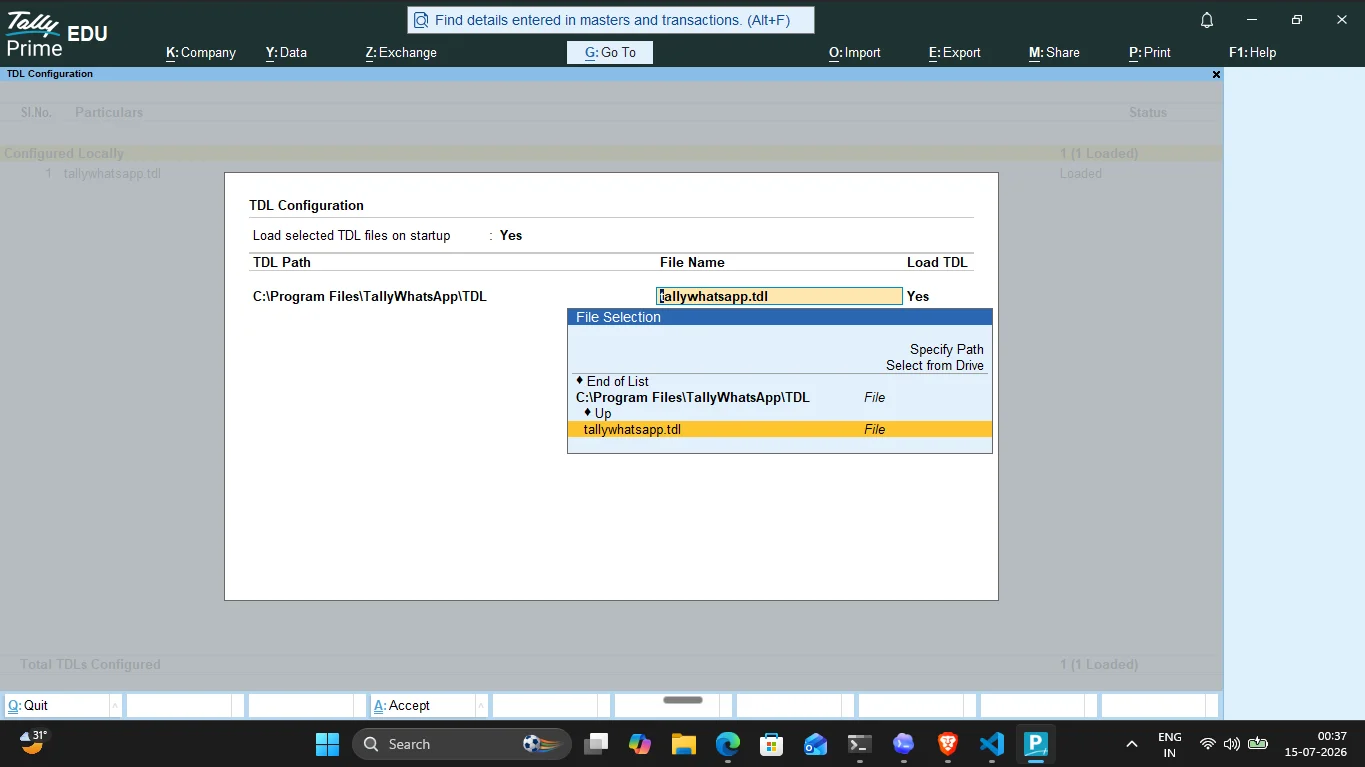
- Download & Install: Download the TallyWhatsApp setup executable and install it on your Windows PC where Tally is running.
- Load the TDL: In TallyPrime, open F1 (Help) > TDLs & Add-Ons > F4 (Manage Local TDLs) and load the included
_loader.tdlfile. - Configure Settings: Open the TallyWhatsApp dashboard and confirm the document and message settings for your office.
- Scan the QR Code: Open the TallyWhatsApp desktop app. A QR code will appear. Open WhatsApp on your phone -> Linked Devices -> Link a Device, and scan the QR.
- Test a Send: Open a sales invoice, choose the TallyWhatsApp send action, check the customer number and PDF, then confirm the result on the receiving phone.
For a detailed breakdown of the exact settings and configurations, please refer to our Complete Setup Guide.
6. What Documents Can You Send?
Check the voucher and report types your team uses during the trial. The TallyWhatsApp workflow includes these common document types:
Sales & Billing
- Sales Invoices
- Proforma Invoices
- Delivery Notes
- Sales Orders
Purchases
- Purchase Orders
- Purchase Vouchers
- Receipt Notes
Payments & Adjustments
- Receipt Vouchers
- Payment Vouchers
- Credit Notes
- Debit Notes
- Journal Vouchers
Reports
- Ledger Statements
- Outstanding Reports
- Stock Journals

7. Multi-User Office Setup (Gold Plan)
A common problem for businesses is managing multiple billing counters. If you have 5 PCs running Tally on your local network, you don't want 5 separate WhatsApp numbers messaging your clients.
TallyWhatsApp solves this elegantly with its Hub/Spoke Architecture, available on the Gold Plan. You install the "Hub" software on a central PC (or server) and scan the QR code once with your primary business phone. The other PCs run the lightweight "Spoke" software, which communicates with the Hub over your local LAN.
The Hub routes supported sends from the office PCs through one paired company WhatsApp number. Confirm each workstation and voucher type during setup.
8. Automated Payment Reminders
Following up on outstanding payments is tedious and time-consuming. One of the most powerful features of sending Tally invoices automatically is the ability to schedule outstanding payment reminders.
Start with the Bills Receivable and party ledger details in Tally, then choose the overdue bills that need a follow-up. TallyWhatsApp's reminder workflow can help prepare and send those messages, but the account balance and recipient must be checked against current Tally data. See the payment reminder walkthrough for the practical checks.
To ensure your automation is set up perfectly, review our Tally Automation Checklist.
9. Responsible Sending Practices
No connector can guarantee that a WhatsApp account will avoid restrictions. Send documents only to the intended parties, check the number stored in each ledger, and keep reminder volume appropriate for your customer relationships.
Before enabling a larger workflow:
- Confirm the party, phone number, invoice attachment, and message text with a test send.
- Use a clear, relevant message that identifies your business and gives the customer a way to reply.
- Review WhatsApp's current business and acceptable-use rules for the account you pair.
- Stop and investigate repeated failures or customer complaints instead of retrying the same batch.
10. Cost Questions to Ask
Costs depend on your document volume, sending accounts, office PCs, and support needs. Compare written terms for each route using the same workflow.
- TallyPrime built-in route: Confirm subscription, wallet deductions, templates, and onboarding support with a Tally Partner. See Tally's current terms.
- TallyWhatsApp single-PC route: Ask an authorized partner for license, renewal, and installation terms for your Windows PC.
- TallyWhatsApp multi-PC route: Ask about Gold hub setup, supported workstations, and the support arrangement for your LAN.
Our cost checklist explains the questions to put in a quote without publishing customer license prices.
11. Frequently Asked Questions
What is the best way to integrate WhatsApp with TallyPrime?
Choose based on the workflow you need. TallyPrime's built-in route uses a registered business number and approved templates; TallyWhatsApp uses a Windows connector and QR pairing. Test your invoice and support needs before choosing.
Are there per-message charges for TallyPrime WhatsApp integration?
TallyPrime's built-in WhatsApp service uses a subscription and wallet whose usage charges follow current provider rules. TallyWhatsApp does not meter messages through the Business API; ask an authorized partner for license terms.
Can I send automated payment reminders from Tally via WhatsApp?
TallyWhatsApp supports a reminder workflow for outstanding bills. Review party and bill details, configure the send schedule where available, and test with a small set before wider use.
Is my data safe with TallyWhatsApp?
The Tally connector runs on Windows and pairs a WhatsApp account by QR code. Invoice content is sent through WhatsApp, while licensing and website lead capture use online services. Review our privacy policy for details.
Can I use WhatsApp integration on multiple PCs in my office?
Yes. TallyWhatsApp offers a Gold Plan which uses a Hub/Spoke architecture. This allows multiple PCs on the same LAN to send WhatsApp messages through a single centralized WhatsApp number, perfect for offices with multiple billing counters.
Ready to try it?
Try a real invoice and recipient in the 14-day trial, then speak with an authorized partner about the office setup you need.
Download 14-Day Free Trial