WhatsApp TDL for TallyPrime — Download & 14-Day Free Trial
Want to send invoices, receipts, and account ledgers from TallyPrime to WhatsApp? Download the TallyWhatsApp installer and TDL, start the 14-day trial, and test a real voucher with your own Tally company. The connector uses QR pairing rather than TallyPrime's built-in WhatsApp Business onboarding. A partner can explain license terms after the trial.
Download the Windows installer from this site, load the included TDL, pair a WhatsApp account in the desktop dashboard, and test a sales invoice. The trial lasts 14 days. The sending result depends on the voucher, recipient number, connected account, and WhatsApp rules.
Why Use a WhatsApp TDL for TallyPrime?
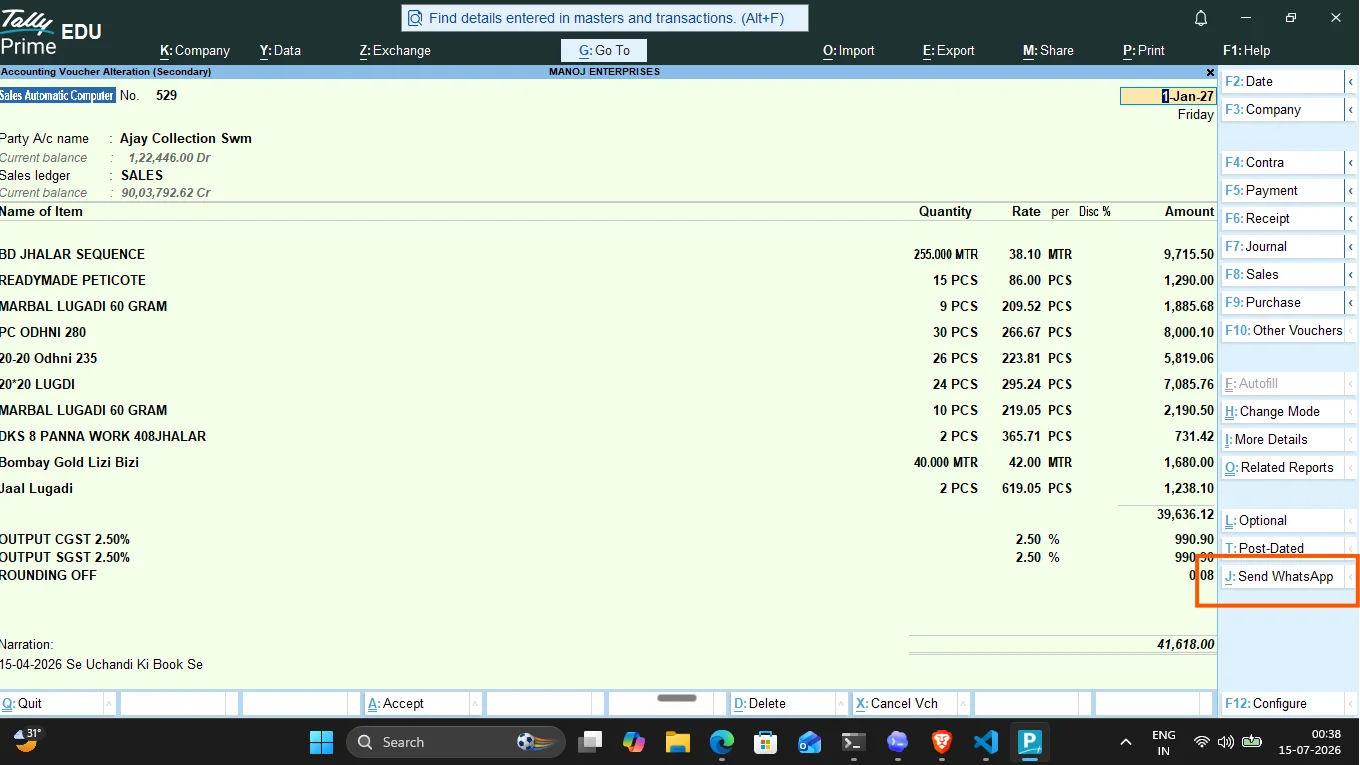
TallyPrime is the backbone of Indian accounting. However, emailing invoices or manually exporting PDFs to send on WhatsApp Web is tedious. A dedicated WhatsApp TDL (Tally Definition Language) add-on solves this by integrating a one-click "Send WhatsApp" button directly inside the TallyPrime voucher form.
The TDL adds a sending action to supported voucher forms. Review the recipient and PDF, then confirm the send from Tally. Read the invoice workflow guide for what the software prepares and what still needs your confirmation.
What You Get with the Free Download
Our installer includes a 14-day fully-featured free trial so you can verify the setup before purchasing a license key. You will get access to:
- Standard TDL files (for Sales, Receipt, Payment, Credit/Debit Notes, and Ledger statements).
- One-Click MSI Installer that handles the local Windows service and COM DLL registration automatically.
- Custom captions template where you can format messages in English, Hindi, or local languages.
Step-by-Step Installation Tutorial
-
Download the Setup Package:
Click the download link on our home page to download the latest
TallyWhatsApp.msiinstaller file. -
Install the Software:
Run the installer downloaded from the official site and follow the wizard. If Windows displays a security warning, verify the file and publisher details; contact support if they do not match what you expected.
-
Link Your WhatsApp Account:
Open the TallyWhatsApp dashboard, go to the WhatsApp tab, and scan the QR code using your phone's WhatsApp Web scanner.

-
Load TDL in TallyPrime:
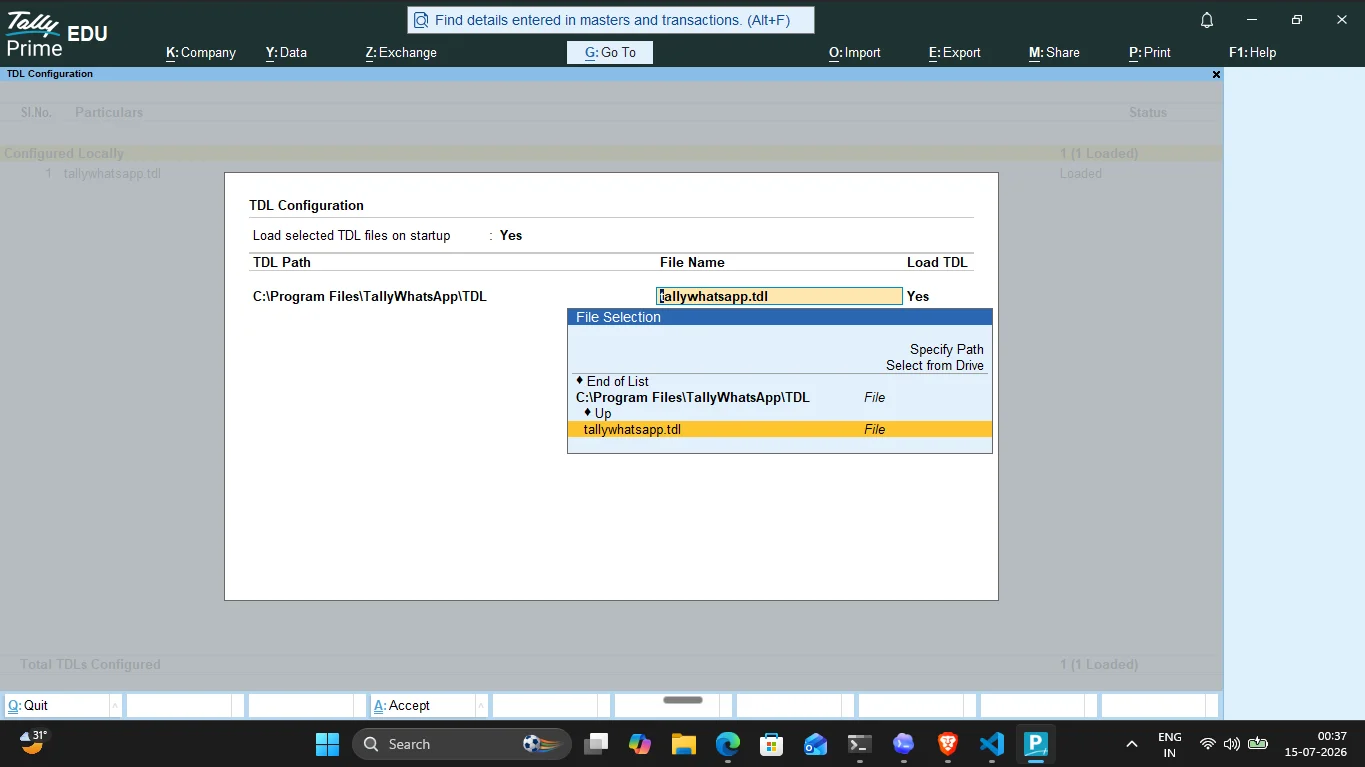
Open TallyPrime, press F1 (Help) > TDLs & Add-Ons > F4 (Manage Local TDLs). Load the
_loader.tdlfile provided in your installation directory. -
Send Your First Voucher:
Open a sales invoice, choose the Send WhatsApp action, confirm the recipient and PDF, then verify delivery on a test phone.
Product Safety and Restrictions
TallyWhatsApp is licensed through authorized partners. A single-PC setup and a Gold multi-PC office arrangement are available. Ask a partner which setup fits your number of billing counters, and review the multi-PC guide before planning a shared sender. QR pairing does not guarantee message delivery or exemption from WhatsApp account restrictions.
System Requirements Before You Download
The WhatsApp TDL runs through a small local connector on Windows. Check these before installing:
| Requirement | Minimum | Notes |
|---|---|---|
| Operating system | Windows 10 / 11 | Windows-only, same as Tally itself. No Mac or Linux. |
| Tally version | Supported TallyPrime or Tally ERP9 installation | Load the included TDL and verify your release during the trial. |
| Any personal or Business-app number | Paired by QR, like WhatsApp Web. No Business API. | |
| Internet | Working connection | Needed for WhatsApp pairing, sending, trial leads, and licensing. |
| Licence | 14-day trial | Ask an authorized partner about the appropriate single-PC or multi-PC license. |
Free Trial vs Paid Licence: What Differs?
The download is identical for trial and paid users — the same MSI, the same TDL files. The only difference is the licence state. During the 14-day trial every feature is unlocked so you can verify real sends on your own vouchers. When the trial ends the connector locks on startup until you enter a purchased key; your Tally data is never touched. This is why the honest framing is "download and free trial," not "free software" — the product is paid, the trial is genuinely free and full-featured.
Common Download & Install Issues
Windows SmartScreen blocks the installer
Verify that the installer came from the official download flow and inspect its file and publisher details. If the warning is unexpected, stop and contact support before running it.
The TDL doesn't appear in TallyPrime
Load it manually: F1 (Help) → TDLs & Add-Ons → F4 (Manage Local TDLs) and point it at _loader.tdl in the install folder. Full walkthrough in the complete setup guide.
QR code won't scan
Open WhatsApp on your phone → Linked Devices → Link a Device, then scan the code in the dashboard. Keep the phone online for the first few sends.
Frequently Asked Questions
Is the download really free?
Yes — the installer and the 14-day full-feature trial cost nothing. After the trial, you can activate your license via an authorized partner. There is no permanent free tier; the trial exists so you can test thoroughly.
Will my WhatsApp get banned?
No tool can guarantee that. Send relevant documents only to intended recipients, check their numbers, and follow WhatsApp's current account rules. Investigate failed sends or complaints before retrying a batch.
Can I move the licence to another PC?
Yes. Email support with your key and we reset the hardware binding, usually within 24 hours.
Ready to try it out?
Download the TallyWhatsApp installer and test the TDL with one real invoice in your 14-day trial.
Download WhatsApp TDL Trial