Send Tally Invoices on WhatsApp Automatically: Setup and Confirmation
TallyWhatsApp can prepare the invoice PDF, party number, and message inside a supported Tally voucher workflow. The operator still confirms the send. That distinction matters: saving a voucher should not silently message an unchecked number or an invoice that has not been reviewed.
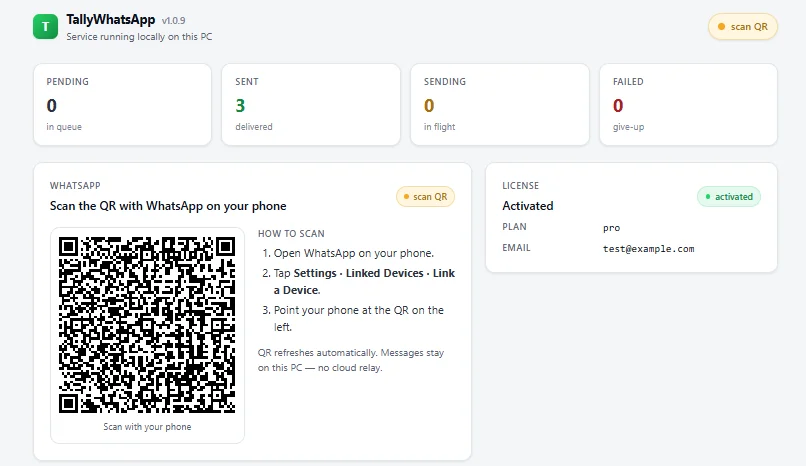
Install the Windows connector, load its TDL in TallyPrime, pair your WhatsApp account by QR, then test one saved sales invoice. Review the customer number and generated PDF before confirming the WhatsApp send. The connector reduces the repeated export-and-attach work; it does not remove your responsibility to check the document.
What Is Automated, and What Needs a Person?
| Part of the workflow | What to expect |
|---|---|
| Invoice details | Tally provides the voucher data and PDF output from the current company and invoice format. |
| Recipient and caption | The connector can use the party details and configured message. Check the number and wording before dispatch. |
| Send decision | The operator confirms the WhatsApp action for the invoice. |
| Delivery result | Verify the result in the sending workflow and with a test recipient; investigate any failed send. |
Set Up an Invoice Notification from TallyPrime
- Install from the official download flow. Start the 14-day trial on the Windows PC where you use Tally. Keep the installer and its TDL files together.
- Load the TDL. In TallyPrime, open F1 (Help) > TDLs & Add-Ons > F4 (Manage Local TDLs) and load the included
_loader.tdl. The complete setup guide shows the same path with screenshots. - Pair a sending account. Open the TallyWhatsApp desktop dashboard and scan its QR code using WhatsApp's Linked Devices flow on your phone.
- Prepare a test voucher. Open or save a sales invoice with a test party phone number. Confirm that the TDL's send action is present and that the PDF matches your normal print format.
- Confirm and check delivery. Review the recipient number and message, confirm the send, then check the receiving phone. If it fails, use the troubleshooting checklist before trying a larger batch.
Can Tally Send WhatsApp Notifications Automatically?
A WhatsApp invoice notification can be part of the voucher workflow, but the word “automatic” is often used loosely. Here it means the connector helps prepare the document and sending action so an operator does not repeatedly export PDFs and attach them by hand. The operator should still check and confirm the message. If your requirement is unattended sending with no confirmation, clarify it with a partner before choosing this setup.
TallyPrime also has a built-in WhatsApp sharing option that uses WhatsApp Business onboarding through Interakt and approved templates. Compare that route separately if you need its business-platform workflow.
Other Documents to Test
Try one receipt and one party ledger statement after the invoice test, because each uses different Tally data and may need a different message. For overdue bills, check the current balance and recipient before sending a reminder; follow the payment reminder guide. A successful invoice test does not prove every voucher format will work unchanged in your company.
Common Questions
Does saving a Tally invoice send it without confirmation?
No. TallyWhatsApp can prepare the recipient, message, and invoice PDF as part of the voucher workflow, but the operator confirms the send. Verify the number and PDF during your trial.
Can I resend the same invoice?
You can initiate another send from the invoice. Check whether the customer already received it before confirming a duplicate.
Can Tally send a WhatsApp notification when I save an invoice?
With a supported TDL and connector, saving or opening an invoice can lead to a WhatsApp send action. TallyWhatsApp keeps operator confirmation in the flow; test the exact action in your Tally release.
Try the flow with one real invoice
Use the 14-day trial to check your Tally release, invoice format, customer number, and sending account.
Start 14-Day Free Trial