How to Send Invoice on WhatsApp from Tally in 5 Steps
Gone are the days of printing invoices, scanning them, or emailing them to a void where they're never seen. Today, business happens on WhatsApp. If you want to know how to send invoice on whatsapp from tally, you are in the right place. This 5-step guide will have you set up and messaging in minutes.
Step 1: Install TallyWhatsApp
First, you need to download and install the TallyWhatsApp desktop application. This tool acts as the bridge between your Tally software and your WhatsApp account. Once downloaded, run the installer and follow the on-screen prompts. Don't forget to load the provided TDL file into Tally (if you're unsure how, check our Complete Setup Guide).
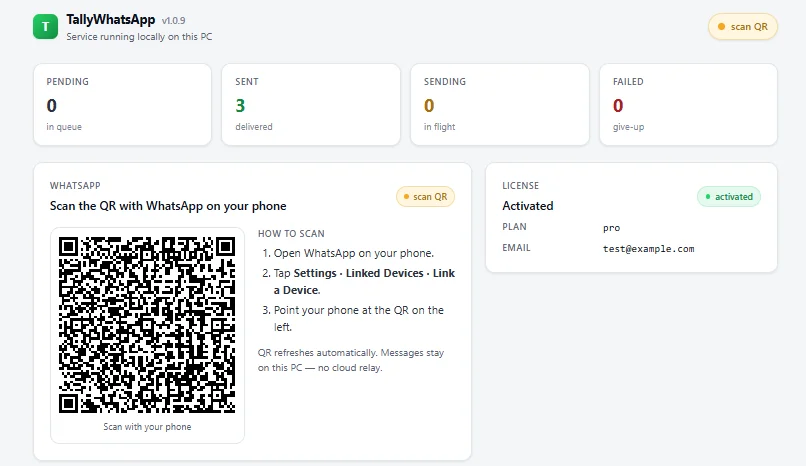
Step 2: Pair WhatsApp via QR
Launch the TallyWhatsApp application. You will be greeted with a QR code screen, much like when you log in to WhatsApp Web on your browser. Open WhatsApp on your phone, tap the menu (three dots) or settings, select "Linked Devices," and point your phone's camera at the QR code on your computer screen.

Step 3: Open Invoice in TallyPrime
Now, open TallyPrime and navigate to any sales voucher. You can either create a brand new invoice or open an existing one from your Day Book or Sales Register. Make sure the ledger has a valid mobile number entered in its master details.
Step 4: Press Alt+J (Send WhatsApp)
With the invoice open on your screen, you'll notice a new button on the right-hand menu pane labeled "Send WhatsApp." You can click this button, or simply use the keyboard shortcut Alt+J. If you want to learn more about the different voucher types supported, read our guide on how to send Tally documents to WhatsApp directly.
Step 5: Done!
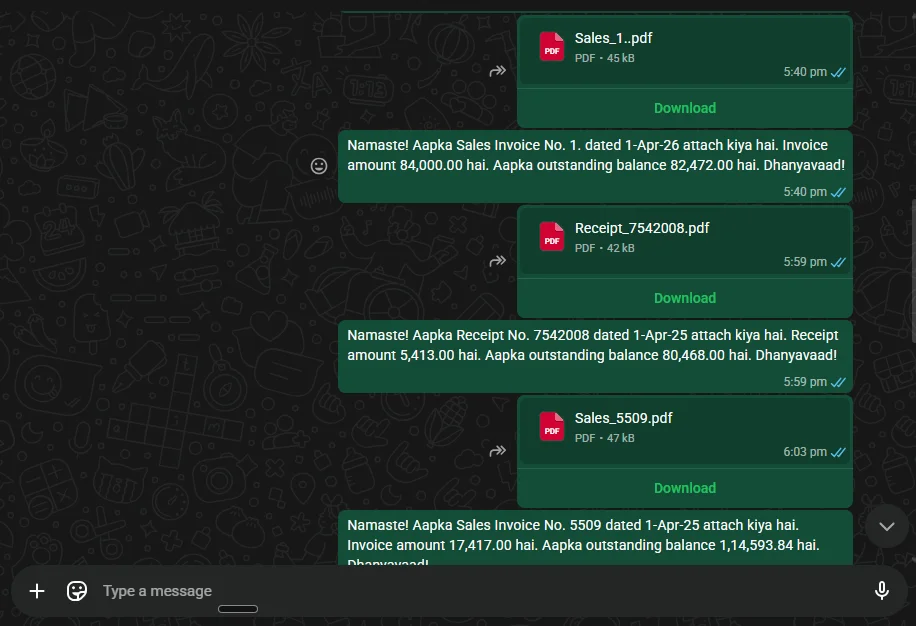
That's it! TallyPrime will generate a PDF of the invoice (including GST details if applicable, as explained in our GST Invoice Guide) and instantly pass it to TallyWhatsApp in the background. The application will dispatch the message to your customer along with a customizable greeting text.
Troubleshooting Tips
If you encounter any issues while trying to send invoice on whatsapp from tally, check these common fixes:
- No Mobile Number: Ensure the party ledger has a valid 10-digit mobile number saved.
- App Not Running: TallyWhatsApp must be open and running in the background (or minimized to the system tray).
- Phone Disconnected: Make sure your paired phone has an active internet connection if you haven't linked the device permanently yet.
Frequently Asked Questions
Do I have to pay per message to send invoices?
No! TallyWhatsApp connects to your own WhatsApp Web session via QR code, completely bypassing the Meta Business API. This means there are zero per-message charges.
Can I send past invoices as well?
Yes, you can open any old voucher in TallyPrime and press Alt+J to send it instantly. It doesn't have to be a newly created invoice.
Ready to try it?
Start sending invoices to your customers on WhatsApp effortlessly today.
Download 14-Day Free Trial